 Pink Post
Features
Every feature, explained.
25 features built for blogger outreach and link building. Each one below shows what it does, how it works, and where to learn more.
Quick campaign templates
Go from blank page to a ready-to-send link-building sequence in one click.
What it does
Six ready-made outreach flows written for link building: Guest post pitch, Link insertion, Broken link, Resource page, Skyscraper and Partnership. Each one creates a draft campaign with an initial email plus follow-ups, already using placeholders and spintax.
How it works
- Open Campaigns, then New campaign.
- Pick a Quick template card (for example Broken link).
- Pink Post creates a draft campaign with the full sequence pre-filled.
- Choose your prospect list and sending accounts, tweak the copy, and activate.
Tips
- Keep the first email under 120 words; the templates are written that way on purpose.
- Replace the generic topic ideas with two real, specific titles for the niche.
Multi-step sequences with conditions
Follow up automatically, at the right moment, without spreadsheets or reminders.
What it does
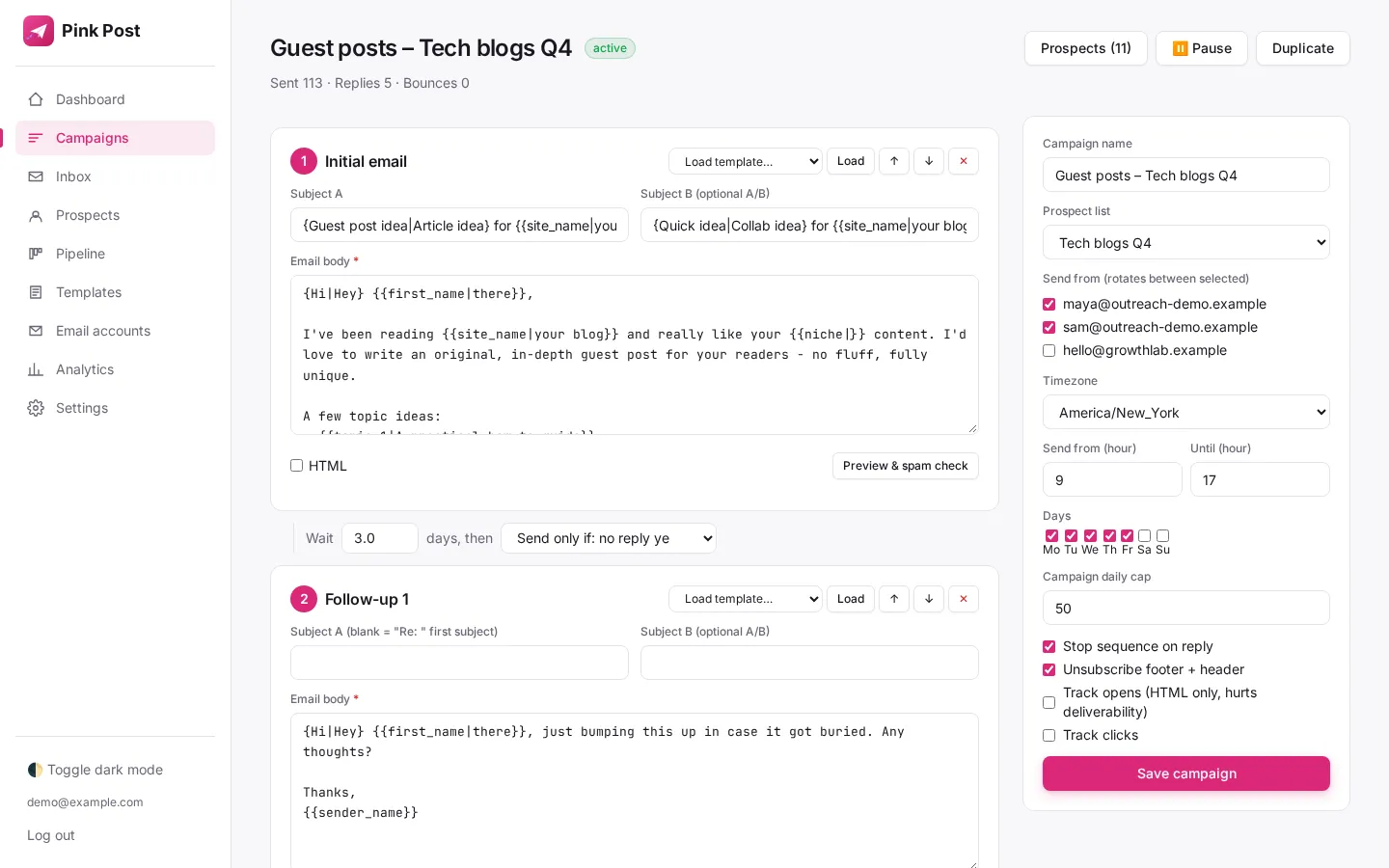
A campaign is a sequence of steps. Each step has a wait (in days) after the previous one and a send condition: always, only if no reply yet, only if opened, only if not opened, only if clicked, or only if bounced. Follow-ups can go out in the same email thread.
How it works
- Add steps in the campaign builder and reorder them with the arrow buttons.
- Set the wait in days and the condition for each follow-up.
- Leave the follow-up subject blank to reply in the same thread ("Re: first subject").
- Pause, resume or duplicate the campaign at any time.
Tips
- Two follow-ups spaced 3 and 5 days apart is a sensible default for blogger outreach.
- Open-based conditions need open tracking, which is off by default (see Tracking toggles).
Stop on reply, bounce and unsubscribe
Nobody ever gets a "just bumping this up" after they already answered.
What it does
When a prospect replies, bounces or unsubscribes, their enrollment stops automatically, so no further steps go out. Stop-on-reply is a per-campaign switch that is on by default.
How it works
- Pink Post checks connected inboxes over IMAP (or Gmail API) on a schedule.
- Incoming mail is matched to the conversation and classified as reply, out-of-office or bounce.
- A real reply marks the enrollment as replied and stops the sequence.
- Bounces and unsubscribes stop it too, and unsubscribes are honoured for future campaigns.
Tips
- Out-of-office auto-replies are detected separately so they show in their own inbox tab.
A/B subject lines
Find out which subject line actually earns replies, not which one you like.
What it does
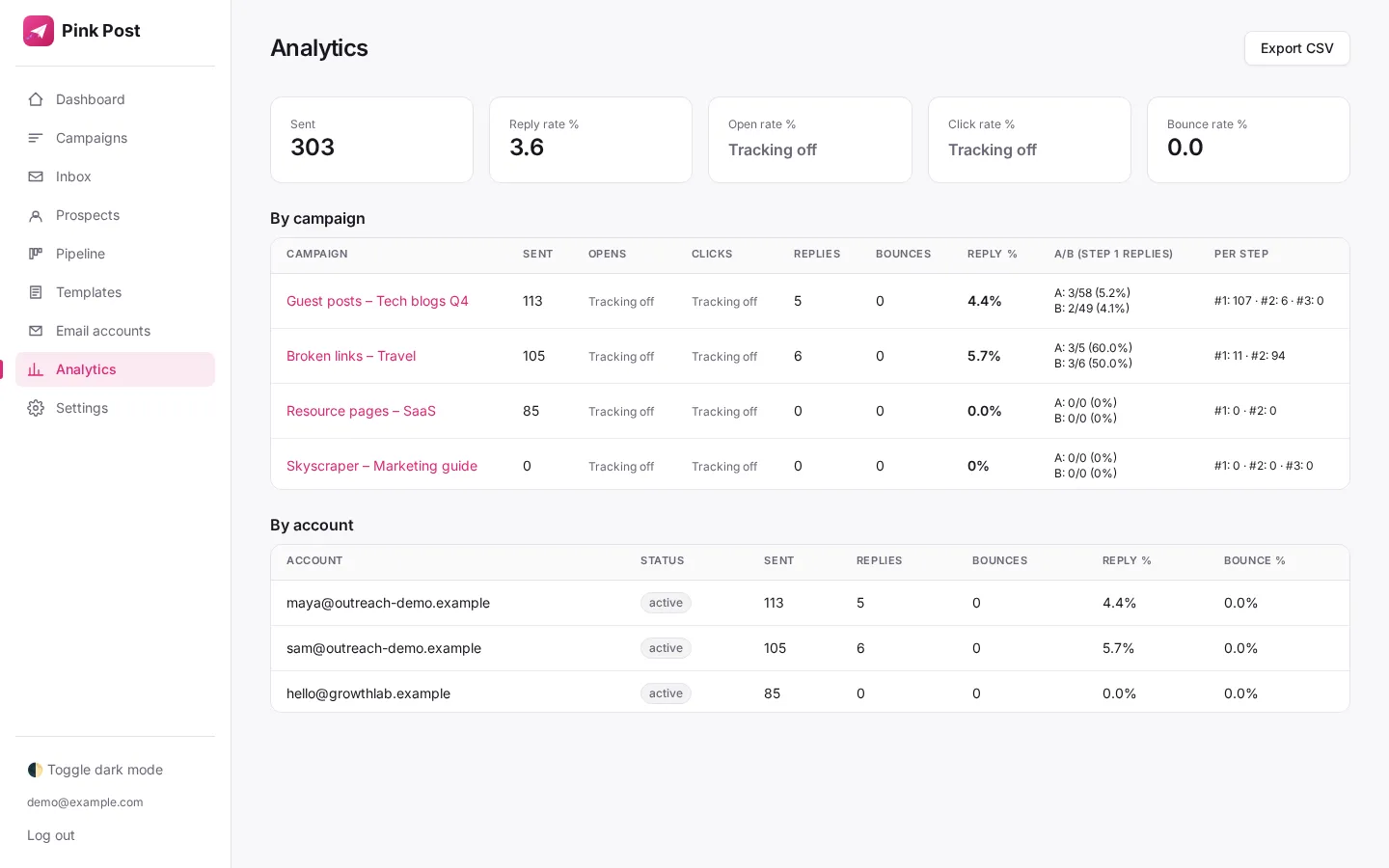
Every step can have an optional Subject B. Prospects are split between variant A and B, and analytics show results per variant.
How it works
- Fill in "Subject B (optional A/B)" on a step.
- Each enrollment is assigned variant A or B.
- Compare reply rates per variant on the Analytics page and export to CSV.
Tips
- Test one idea at a time, for example a question versus a statement.
- Wait for at least a few dozen sends per variant before drawing conclusions.
Spintax variations
Every email reads a little differently, which looks more human and helps deliverability.
What it does
Write {Hi|Hey|Hello} anywhere in a subject or body and Pink Post picks one option per email. Nested spintax works too. You can see it live in the template preview.
How it works
- Wrap alternatives in curly braces separated by pipes: {quick question|small idea}.
- Use Preview to see rendered examples.
- Each prospect gets one random combination when the email is sent.
Tips
- Vary greetings and transitions, not your core offer.
- Try it right now in the Pitch playground on the home page.
Placeholders with fallbacks
Personal at scale, and never an embarrassing "Hi {{first_name}}," when data is missing.
What it does
Use variables like {{first_name}}, {{site_name}}, {{website}} or {{niche}}, plus any custom column from your import. Add a fallback after a pipe, for example {{first_name|there}}, used when the field is empty.
How it works
- Import prospects with the columns you want to use.
- Insert variables from the variables help panel in the editor.
- Add a fallback with a pipe; the preview shows what a prospect without data will see.
Tips
- Custom CSV columns such as topic_1 become variables automatically.
- Optional AI intros ({{ai_intro}}) can be drafted from the prospect site title with your own OpenAI, Anthropic or xAI key, and are reviewed before sending.
Warm-up ramp
New mailboxes start slow and build reputation instead of getting flagged on day one.
What it does
Each account has a built-in sending ramp: it starts at a small daily volume (default 5) and adds a few emails per day (default +2) until it reaches the daily limit. This is a volume ramp for your real outreach, not a peer-to-peer warm-up network.
How it works
- Warm-up is on by default for every new account.
- Set the start volume and daily increase on the account page.
- The engine never sends more than the ramp allows that day.
Tips
- Brand-new domains should ramp for 2 to 4 weeks before reaching 30 or more a day.
Daily and hourly limits with random delays
Send like a person, not a script, and keep each mailbox well under provider limits.
What it does
Every account has a daily limit, an hourly limit, and a random delay window between emails (default 90 to 300 seconds). Each campaign also has its own daily cap.
How it works
- Set daily and hourly limits per account.
- Set minimum and maximum delay in seconds.
- Set a campaign daily cap; the lowest limit always wins.
Tips
- Spread volume across several accounts rather than pushing one mailbox hard.
Send windows and timezones
Land at the top of the inbox during your prospect's working hours.
What it does
Each campaign has a timezone, a start and end hour, and the weekdays it may send on. Outside the window, emails wait for the next allowed slot.
How it works
- Pick the timezone your prospects are in.
- Set send-from and until hours (for example 9 to 17).
- Tick the weekdays to send on.
Tips
- Split campaigns by region when your list spans continents.
Multiple accounts and rotation
Scale volume safely by spreading it across several mailboxes.
What it does
Connect as many SMTP/IMAP or Gmail (OAuth) accounts as you like. Select several in a campaign and Pink Post rotates between them, respecting each account's limits. Accounts are auto-paused on login errors or a high bounce rate.
How it works
- Add accounts under Email accounts and run the connection test.
- In a campaign, tick every account to rotate between.
- Follow-ups stay on the account that sent the first email, keeping threads intact.
Tips
- Use a sender name and signature per account so every mailbox looks real.
Bring your own key (free SMTP relay)
Send through a free relay such as Brevo with your own key, so you control cost and reputation.
What it does
Any SMTP server works as the sending side of an account, so you can send through a relay such as the Brevo free tier (300 emails per day at the time of writing) using your own SMTP key, while replies are still read from your normal mailbox over IMAP.
How it works
- Create a relay account and authenticate your domain there.
- Generate an SMTP key in the relay dashboard.
- In Pink Post, put the relay host, port and login on the SMTP side, and your mailbox IMAP details on the IMAP side.
Tips
- Free relay tiers have daily caps; set your account daily limit at or below the cap.
Unified inbox with threads
Every reply from every mailbox in one place, with the full conversation.
What it does
Replies, out-of-office messages and bounces from all accounts are collected into one inbox with tabs, unread filter and label filter. Open a conversation to see your emails and theirs in order, and reply in the same thread from the account that sent it.
How it works
- Pink Post polls connected inboxes (or click Check now).
- Messages are grouped into conversations per prospect.
- Reply from the composer; the email goes in-thread.
Tips
- Use the Unread tab as your daily to-do list.
Quoted-text stripping
Read only what they actually wrote, not five copies of your own pitch.
What it does
When showing a reply, Pink Post separates the new text from the quoted history (lines like "On ... wrote:", "Original Message" blocks, forwarded headers) and hides the quote. This is display-only; the stored email is never modified.
How it works
- A reply arrives with your previous email quoted below it.
- Pink Post detects common quote markers in several languages.
- The thread shows the fresh text, with the quoted part collapsed.
Keyword auto-labels
Triage replies in seconds: interested, negotiating, later, not interested, wrong person.
What it does
Free keyword rules label replies automatically, with no paid AI. Negative phrases are checked first, so "not interested" never counts as interested. Labels: interested, not interested, negotiating (price, rates, sponsored...), later, wrong person.
How it works
- A reply arrives and its new text is scanned for phrases.
- The first matching rule sets the label; unsure replies stay unlabelled.
- Change any label manually from the thread.
Tips
- Filter the inbox by "negotiating" to find everyone who asked about price.
Deal pipeline
See every opportunity from first contact to live link, with money attached.
What it does
A board with six stages: New, Contacted, Replied, Negotiating, Deal done, Link live. Each card stores price, the page URL where your link lives, your target URL, link date and notes. Column totals show the deal value per stage.
How it works
- Prospects move to Contacted and Replied as emails go out and answers arrive.
- Open a card to set the stage, price and link details.
- Save, and the board totals update.
Tips
- Record the agreed price as soon as it is mentioned so the Negotiating total stays honest.
Won-link tracking with live checks
Know the moment a paid or earned link disappears.
What it does
For every won link, Pink Post fetches the page where it lives and checks that it still links to your target URL, marking it live, missing or error with the time of the last check.
How it works
- Fill in "Page URL where link lives" and "Your URL it should link to" on the pipeline card.
- Pink Post checks all backlinks on a schedule (or on demand).
- A badge on the card shows link live or link missing.
Tips
- Follow up politely as soon as a link shows missing; most removals are accidents.
Blocklist, do-not-contact and dedupe
Never email the same person twice, a competitor, or someone who said no.
What it does
A global blocklist accepts full emails or whole domains. Anyone matching is skipped on import and never emailed. Prospects can be flagged do-not-contact individually, and imports skip duplicates both against your database and within the file.
How it works
- Add emails or domains (one per line) to the blocklist in Settings.
- Flag a prospect as do-not-contact from their page or in bulk.
- Import a CSV; the summary shows how many duplicates were skipped.
Tips
- Add your own company domain and your clients' domains to the blocklist first.
CSV and Excel import/export with a Google Sheet template
Bring the list you already have, in minutes, and take your data with you any time.
What it does
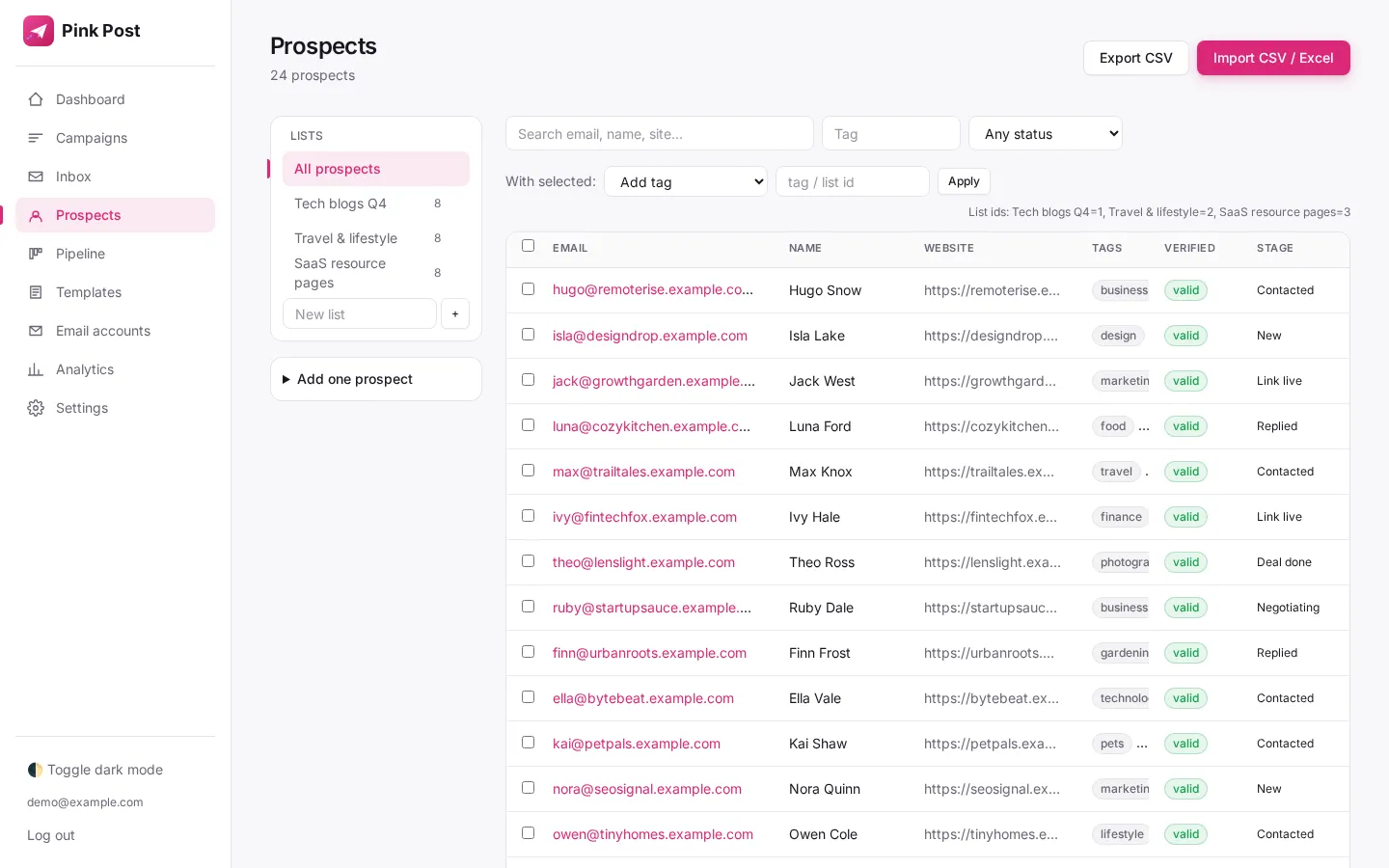
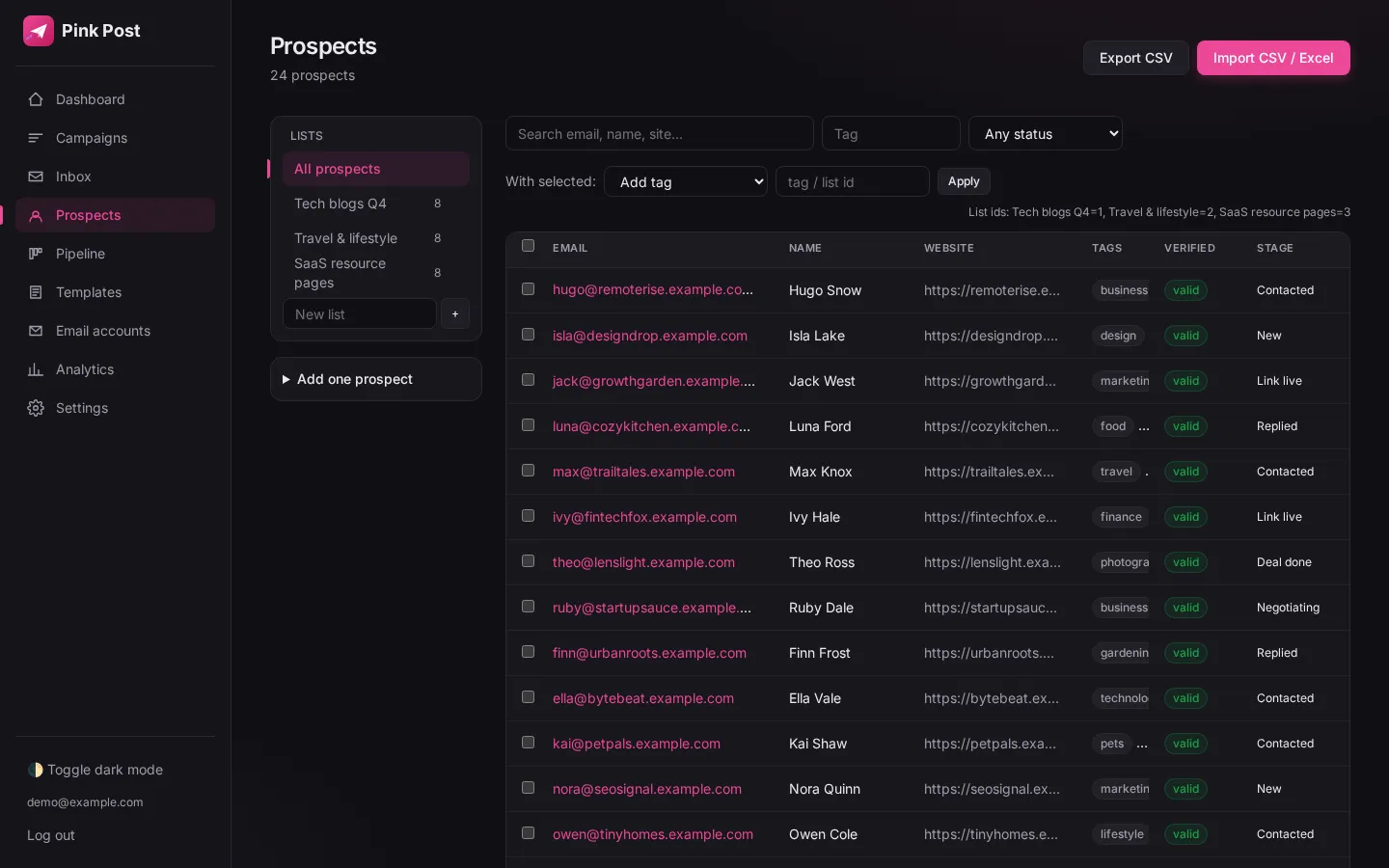
Import .csv or .xlsx files with column mapping and custom fields. A ready-made CSV template and a Google Sheet template use the columns website, site_name, first_name, last_name, email, niche, dr, traffic, price, notes. Prospects, analytics, campaigns and templates can all be exported.
How it works
- Download the CSV template or make a copy of the Google Sheet template.
- Fill it in and upload it under Prospects, then Import.
- Confirm the column mapping; Pink Post verifies syntax and MX, dedupes and imports.
Tips
- Optional ZeroBounce or Hunter keys add deeper email verification.
DNS and deliverability checker
Catch SPF, DKIM and DMARC problems before they cost you a domain.
What it does
The built-in checker looks up your sending domain's SPF (exactly one v=spf1 record), DKIM and DMARC records and explains what to fix. The template editor also has a spam-word check and preview.
How it works
- Open Settings, enter your domain (and DKIM selector if you know it) and run the DNS check.
- Read the pass/fail for SPF, DKIM and DMARC with hints.
- Fix records at your DNS host and check again.
Tips
- Try the public Deliverability X-ray on our free tools page for a quick outside check.
Analytics and CSV export
Honest numbers per campaign, per account, per step and per A/B variant.
What it does
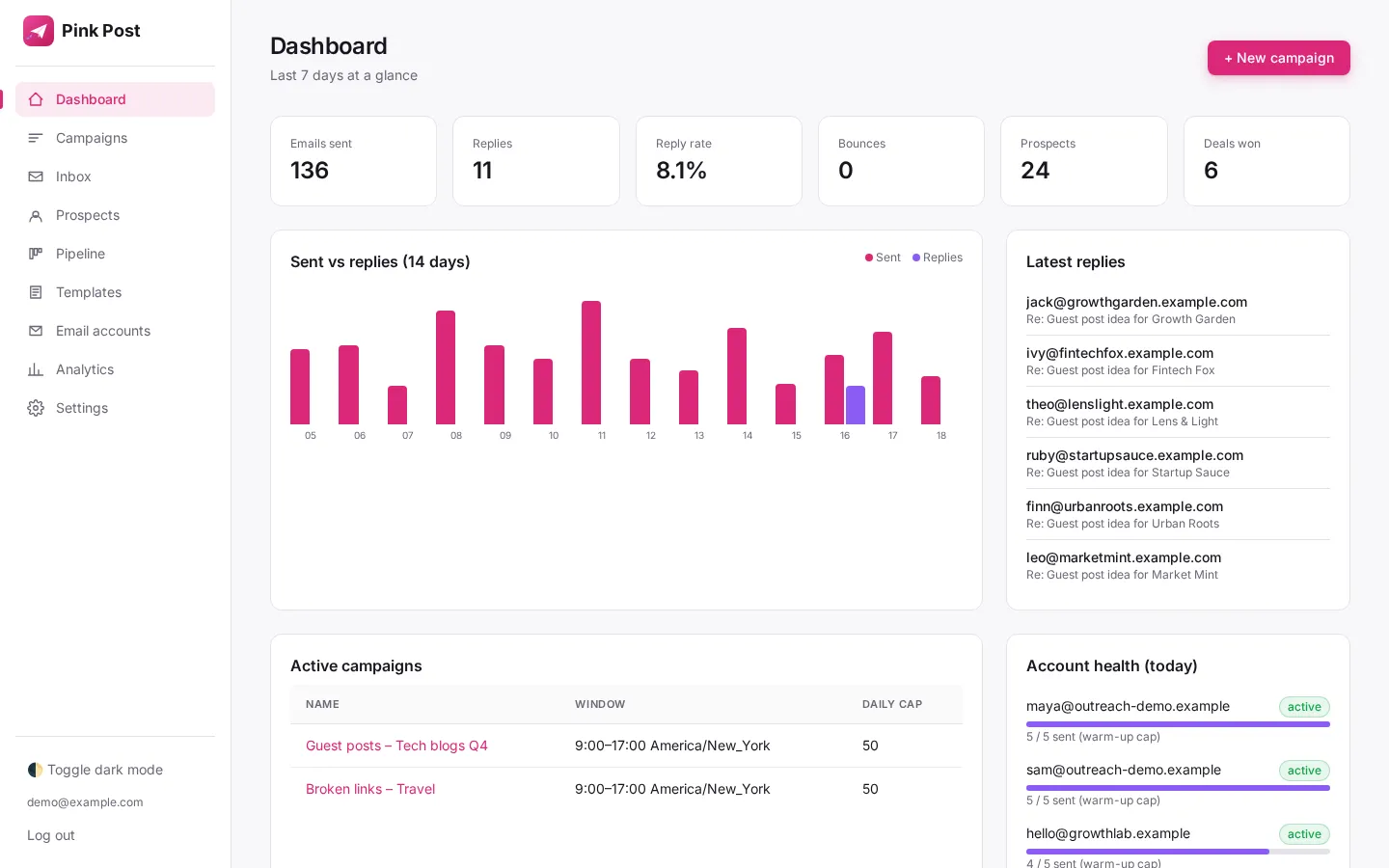
Sent, replies, bounces and (when tracking is on) opens and clicks, broken down by campaign, account, step and subject variant, with CSV export.
How it works
- Open Analytics.
- Filter by campaign or account.
- Export to CSV for reporting.
Tips
- Reply rate is the metric that matters; opens are unreliable because of mail privacy proxies.
Open and click tracking toggles (off by default)
Better deliverability by default, with tracking only when you choose it.
What it does
Open tracking (pixel, HTML emails only) and click tracking are per-campaign switches, both off by default because tracking can hurt deliverability. Plain text or HTML can be chosen per step.
How it works
- Open campaign settings.
- Tick Track opens or Track clicks only if you need them.
- Analytics show opens and clicks for tracked campaigns.
Tips
- For blogger outreach, plain text without tracking usually performs best.
Unsubscribe footer and one-click header
Respectful outreach that keeps you compliant and out of spam folders.
What it does
Campaigns can add an unsubscribe footer and a List-Unsubscribe header. Unsubscribes stop the sequence and the person is not emailed again.
How it works
- Keep "Unsubscribe footer + header" ticked in campaign settings (on by default).
- A recipient clicks the link or uses their mail app's unsubscribe button.
- Pink Post records it and excludes them from future sends.
Tips
- Add your postal address in the signature where your local law requires it.
Bounce detection and auto-pause
Protect your sender reputation automatically when a list goes bad.
What it does
Bounce messages are detected and stop the sequence for that prospect. If an account's bounce rate over the last 30 days gets too high (after 20 or more sends), the account is paused automatically. Login errors also pause an account. Optional Telegram, Slack or webhook alerts tell you when it happens.
How it works
- Bounces arrive in the connected inbox and are classified.
- The enrollment is marked bounced and the bounce shows in the Bounces tab.
- The engine checks bounce rates and pauses unhealthy accounts.
Tips
- Verify lists before sending; MX verification is built in on import.
Light and dark mode
Comfortable on long outreach sessions, day or night.
What it does
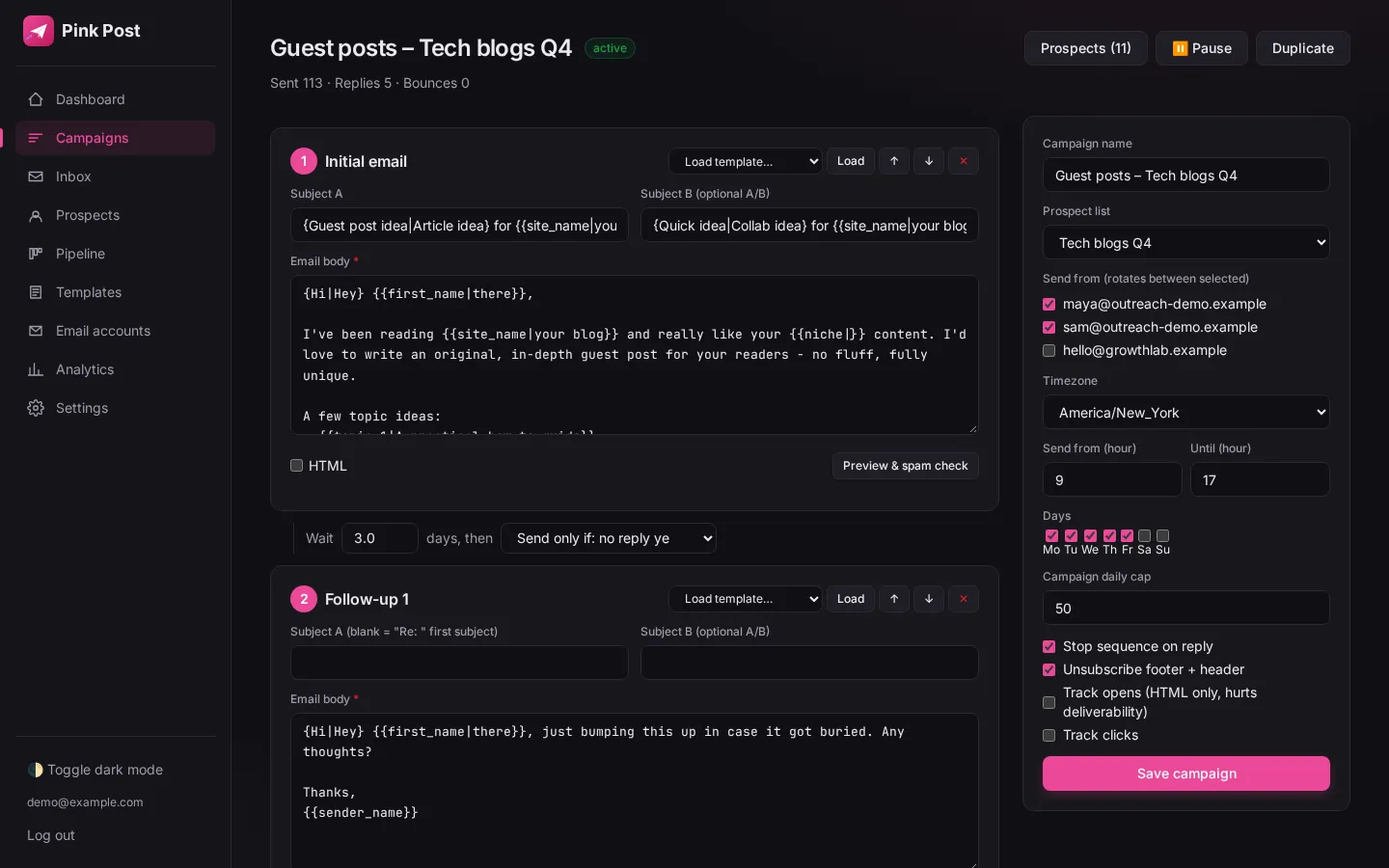
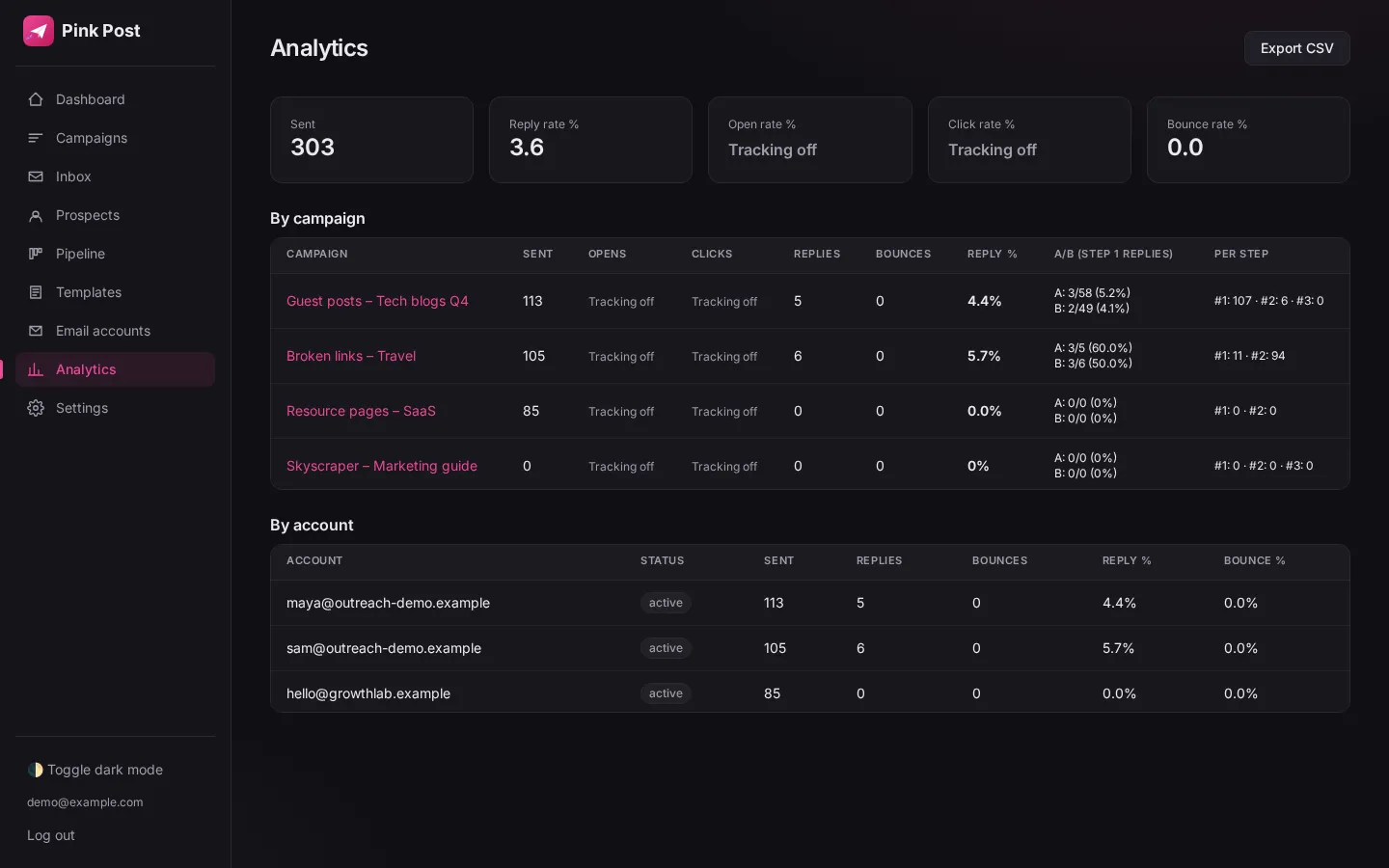
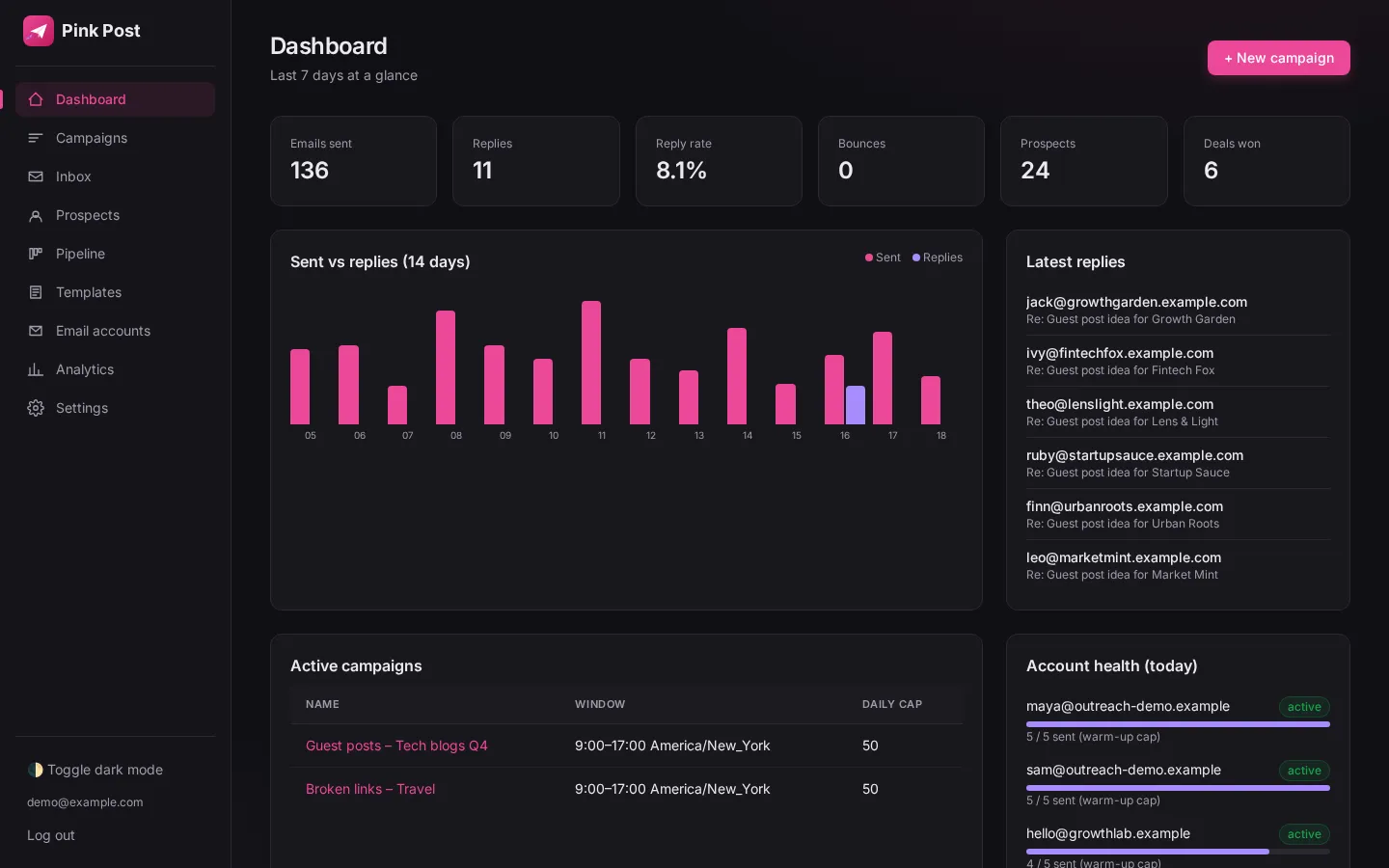
The whole app has a light and a dark theme. It follows your system setting and remembers your choice.
How it works
- Click "Toggle dark mode" in the sidebar.
- Your choice is saved in the browser.
Self-hosted-style privacy
Your lists, emails and keys stay on infrastructure you control.
What it does
Pink Post can run on your own server with SQLite or Postgres. Saved passwords and API keys are encrypted at rest (Fernet), and your prospect data is never pooled with anyone else's.
How it works
- Run it with Docker on your own server, or use the hosted app.
- Secrets are generated automatically and used to encrypt stored credentials.
- Export your data any time as CSV or JSON.
Tips
- Back up the database and the secrets file together.
Free until October 31, 2026
Your next link is one pitch away.
Connect a mailbox, import a list, launch a Quick campaign. Most people send their first pitch in under 15 minutes.